
Upload Guide
Detailed guide to the Upload page, including supported formats, task controls, and processing flow.
What Upload does
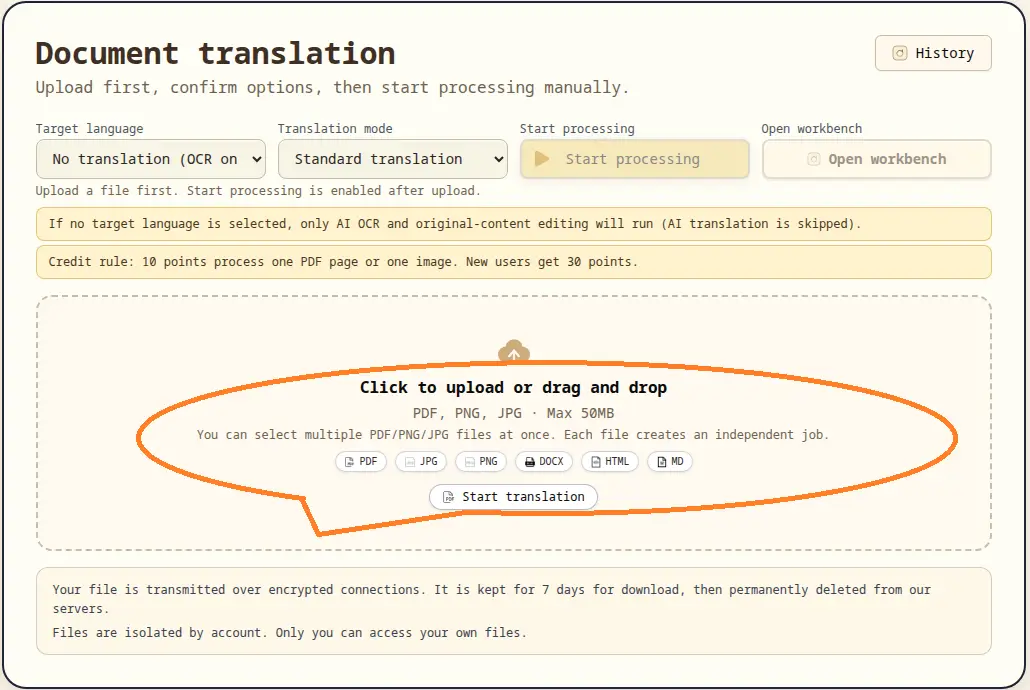
The Upload page creates translation jobs and controls when processing starts. It is designed to separate file submission from processing execution.
Supported inputs
- File types:
PDF,PNG,JPG,JPEG - Multi-file upload is supported, and each file becomes an independent job.
Option confirmation before processing
- Select target language.
- If target language is empty, the job runs in OCR-only mode.
- Select translation mode when translation is required.
Start Processing behavior
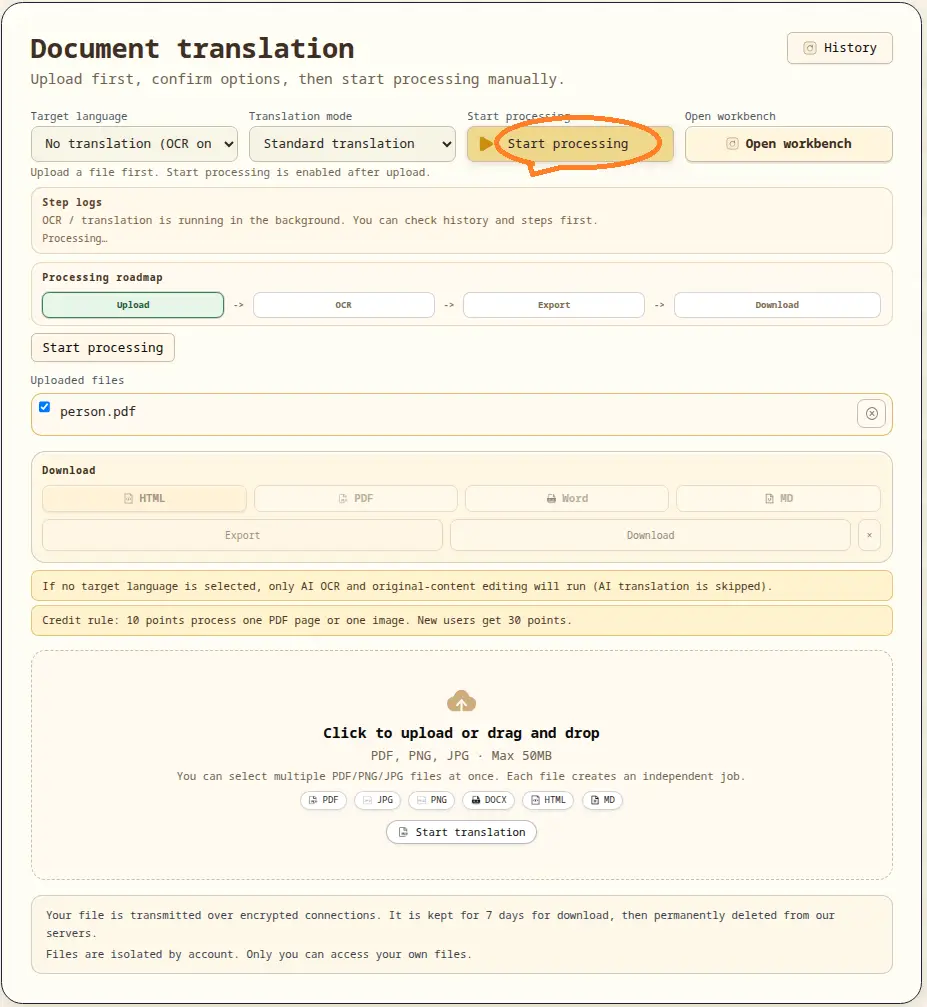
- Processing starts only after you click Start processing.
- Button state reflects current job state (
uploaded,running,ready,failed) to avoid duplicate clicks. - Failed jobs can retry from the failed step or restart from the beginning.
History and step logs
Hist & Loglets you reopen past jobs in Upload or Workbench.- Upload page shows recent step highlights for quick status awareness.
- Detailed logs are available from history panels.
Credits and task boundaries
- Credit rule:
10 credits = 1 PDF page or 1 image - New user initial credits:
30 - Upload page focuses on job creation, control, and status visibility.
Legal and payment notice
For legal terms, privacy, and payment processing, see our Privacy Policy and Terms of Service.